

A 4K monitor can give a laptop more room for documents, spreadsheets, editing tools, and multiple windows. Before buying one, check whether your laptop can send a 3840 × 2160 signal at 60Hz through the connection you intend to use. A laptop may support 4K at 30Hz on one port and 60Hz on another. A dock or adapter can introduce another limit.
What does 4K at 60Hz mean?
On a typical 4K UHD computer monitor, 3840 × 2160 is the number of pixels displayed. The 60Hz refresh rate means the display can redraw the image up to 60 times each second. Resolution and refresh rate are separate settings. If your laptop offers 3840 × 2160 only at 30Hz, text can still look sharp, but scrolling and pointer movement may look less smooth than at 60Hz.
For office work, browsing, and video, a 4K 60Hz connection is a practical target. It does not mean your laptop can render a demanding game at 60 frames per second. Gaming performance depends on the graphics processor, the game, and its settings. If you are still deciding among resolutions, our 4K, 5K, and 5K2K comparison explains the screen-space differences.
Start with the laptop's exact model
Find the model identifier on the laptop's label, in its system information, or on the manufacturer's support page. Search its official technical specifications for “external display,” “video output,” “HDMI,” “DisplayPort,” “Thunderbolt,” or “USB-C DisplayPort Alt Mode.” Look for both the supported resolution and refresh rate, not a general “4K compatible” statement. Check the specification for the specific port you plan to connect. Some laptops have different capabilities on HDMI and USB-C.
Mac owners should use Apple's external-display specifications for their specific Mac model. Apple explains that the number of supported displays and their resolutions vary by model and configuration. Windows laptop owners can use the manufacturer's model-specific support page or manual. If a specification lists only an HDMI version without a supported display mode, confirm the output details with the manufacturer rather than assuming every implementation behaves identically.
Identify the video route
There are three common ways to connect a laptop to a 4K monitor. Each component between the laptop and screen must support the intended mode:
- HDMI: Many laptop and monitor HDMI 2.0 connections support 4K at 60Hz, while older HDMI 1.4 implementations commonly top out at 4K 30Hz. Check the output, cable, and the monitor's particular HDMI input. Dell's video-cable guide lists typical capabilities, but the actual equipment specifications take priority.
- DisplayPort: DisplayPort 1.2 is commonly capable of 4K at 60Hz. A laptop may expose DisplayPort through a full-size port, Mini DisplayPort, USB-C, or Thunderbolt. Check the adapter if the connectors differ.
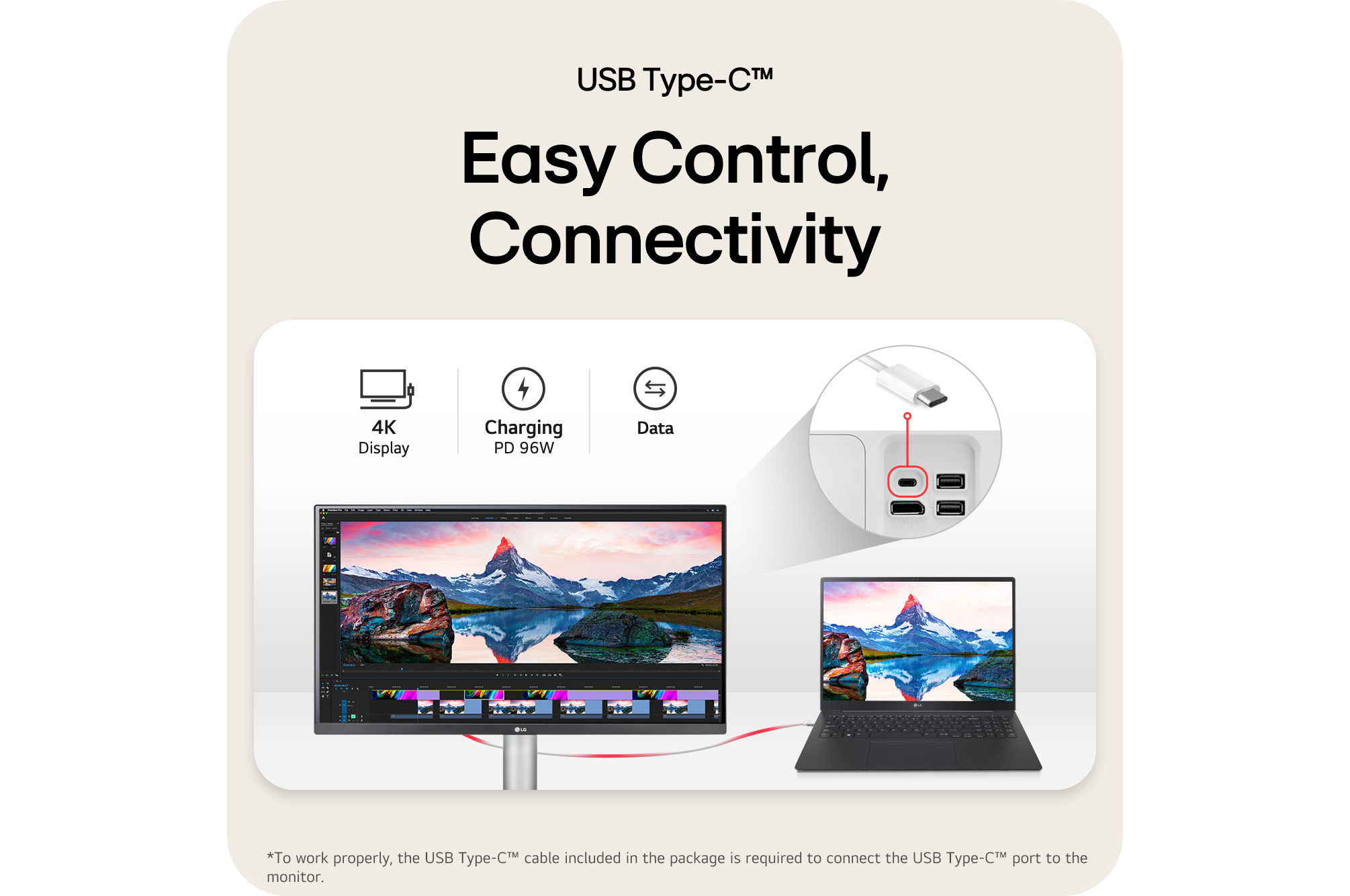
- USB-C or Thunderbolt: A USB-C connector does not itself confirm video support. The port must support a display mode such as DisplayPort Alt Mode or Thunderbolt, and the cable and monitor must support the planned connection. Dell notes that a USB-C port used only for power and data will not output video.
If a monitor also charges a laptop over USB-C, video support and charging wattage are separate checks. A monitor can display the picture yet provide less power than a larger laptop needs under load. Our guide to Power Delivery in a monitor explains that distinction.
Check the cable, adapter, or dock
A cable with the right plug can still be the wrong choice. Look for a manufacturer-stated 4K 60Hz capability and the correct connector arrangement. For USB-C, verify that the cable carries video; some cables are intended mainly for charging or basic data. For HDMI, replace an unknown or older cable with one specified for the bandwidth required by both devices before diagnosing the laptop.
Hubs and docks deserve particular attention. Their product pages may list 4K 60Hz for a single display but 4K 30Hz when additional displays or high-speed USB ports are used. Some adapters have separate modes that trade display bandwidth for USB data bandwidth. Dell documents an example of these adapter bandwidth limits. Read the exact docking configuration and host requirements, not only the headline resolution.
For a first test, connect the laptop directly to the monitor with a known-capable cable. A direct connection removes the dock and its settings from the diagnosis. If it reaches 4K 60Hz directly but not through the dock, inspect the dock's display count, upstream port, cable, and firmware.
Confirm what the monitor accepts
Read the monitor manual for its native resolution and the maximum refresh rate on each input. A monitor may have multiple HDMI ports with different capabilities, or a setting in its on-screen menu that enables a higher-bandwidth mode. Select the input that matches your cable and check that the monitor's own information menu reports 3840 × 2160 at 60Hz. If you are shopping for a portable second screen instead, our portable monitor guide covers a different set of trade-offs.
Verify 4K 60Hz in Windows
- Connect the monitor and open Settings > System > Display.
- Select the external display if more than one screen is shown. Under Display resolution, choose the monitor's native 3840 × 2160 resolution if available.
- Open Advanced display, select that same external monitor, and check the refresh-rate menu. Choose 60Hz if it is listed.
- Check the monitor's on-screen information display as an independent confirmation of the incoming signal.
Microsoft's instructions for changing resolution and changing refresh rate describe these controls. Making text larger with Windows scaling does not reduce the video signal's pixel resolution; check the resolution field rather than judging by icon size.
Verify 4K 60Hz on a Mac
Connect the display, then open System Settings > Displays and select the external monitor. Review its resolution and refresh-rate options. Apple provides model-specific external-display limits and notes that the available settings depend on the display and connection. If 60Hz is absent, confirm your Mac model's output specification, the adapter, the cable, and the monitor input before concluding that the Mac cannot do it. Apple's external-display support guide is the starting point; an HDMI-to-USB-C adapter's own rating is also relevant.
If you only get 30Hz, narrow down the limit
First, verify that the external screen is selected in display settings. Try a direct connection using a known 4K 60Hz cable, then a different eligible port on the laptop and monitor. Check the monitor's input menu for a setting that controls high-resolution operation. If the problem appears only through a hub, look up its supported display modes for your exact number of attached monitors and USB devices. On Windows, check for relevant graphics and dock updates from the laptop manufacturer. On a Mac, review the supported display modes for the exact Mac and adapter.
If a laptop's official specifications list 4K 30Hz as its maximum on every available output, a cable cannot turn that into 4K 60Hz. You may still use the monitor at 30Hz, choose a lower resolution that permits 60Hz, or select a different computer. Check the monitor's supported modes before choosing a lower-resolution fallback.
A short buying checklist
Before ordering, record the laptop's exact model and video-output specification, the monitor's input-specific modes, and the cable or dock's stated 4K 60Hz capability. Confirm whether you need USB-C charging, and compare its wattage separately from video support. Once connected, verify both 3840 × 2160 and 60Hz in the operating system and the monitor menu. Those checks are more reliable than judging compatibility by the shape of a port alone.
Compare monitor options
Browse monitors and displays at The Mobile Base. Check each listing's resolution, refresh rate, and input ports against your laptop before purchasing.
Compare laptop options
If your current laptop cannot provide the output you need, browse used laptops at The Mobile Base. Check the exact model's external-display specification alongside our refurbished laptop specification guide.