

How to Check Whether Your Gaming PC Uses DDR4 or DDR5 RAM
Before buying more RAM for a gaming computer, confirm whether its motherboard uses DDR4 or DDR5. The two generations look similar in photos, but they are not interchangeable. A faster DDR5 kit will not work in a DDR4 slot, and a DDR4 kit will not work in a DDR5 slot. This guide shows how to identify the correct generation, then check the other specifications that affect an upgrade.
Why the motherboard model is the best starting point
RAM compatibility is determined by the computer as a whole, especially its motherboard and processor. Kingston explains that DDR4 and DDR5 have different electrical requirements and differently keyed slots, so the modules cannot be mixed on the same board. A processor may support both generations without a particular motherboard doing so. Intel's 12th-generation desktop processor guidance, for example, lists support for both DDR4 and DDR5. The board you own still decides which type you can install.
If you bought a prebuilt gaming PC, find its full manufacturer model and, if available, its configuration or service tag. If it is a custom desktop, identify the motherboard model. Do not buy RAM solely from the processor name or the computer's approximate age. Some product families have separate DDR4 and DDR5 board versions with very similar names.
Find the motherboard in Windows
- Press Windows + R.
- Type msinfo32 and press Enter to open System Information.
- In System Summary, note BaseBoard Manufacturer and BaseBoard Product. Also note System Model if the computer is prebuilt.
- Search the board maker's support page or the PC maker's exact model page. Open the specifications or manual and look for Memory.
Microsoft documents System Information as a way to view local hardware details, and its hardware documentation describes the BaseBoard Product field as the motherboard's product name. On some prebuilt systems, these fields are generic, blank, or less specific than the retail board name. In that case, use the PC manufacturer's support page and the full system model, not a guessed board designation. A purchase invoice or the printed label on the motherboard can also help.
Read the manufacturer's memory specification
The board or PC specification should state DDR4 or DDR5 clearly. Record the supported module type, number of slots, maximum capacity, and supported speeds too. The manual may also specify a recommended slot order when installing two modules. If there is a support page for your exact board revision, use it rather than a page for a similar-sounding model.
For an AMD desktop, the platform can provide a useful cross-check: AMD identifies Socket AM5 as a DDR5 platform. An older AM4 desktop commonly uses DDR4. Still verify the exact board and processor before ordering, particularly with prebuilt systems. For Intel systems in transitional generations, the processor alone is an especially poor shortcut because both DDR4 and DDR5 motherboard versions exist.
Check the installed module when documentation is unclear
If you can safely open the desktop, the label on an existing RAM module may state DDR4 or DDR5 and its speed, such as DDR4-3200 or DDR5-5600. Check the board model printed on the circuit board as well. Power the computer off, unplug it, and follow the manufacturer's handling instructions before touching internal parts. Do not force a module into a slot: the different notch positions are intended to prevent the wrong generation from fitting.
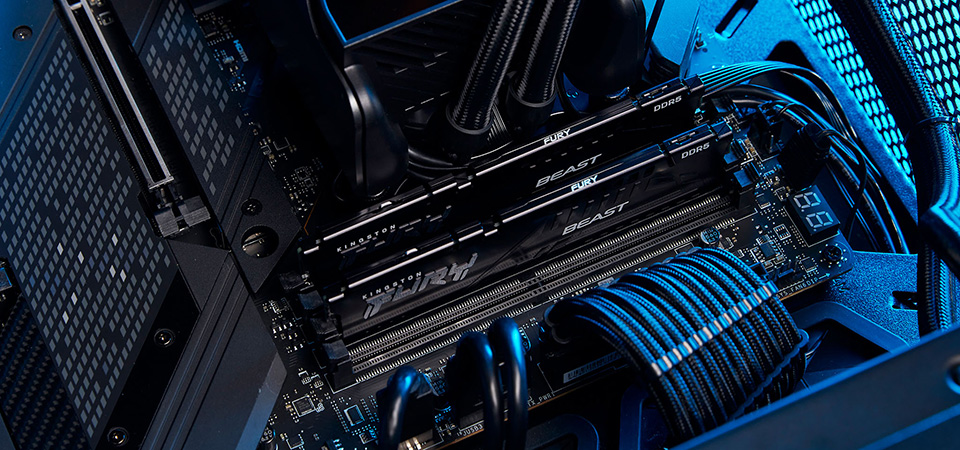
Photographs of RAM are not a reliable way to identify the generation. Heat spreaders can hide the chips and labels, while the notch difference is small. A product listing's “gaming RAM” description also says nothing about the memory type your PC accepts. Kingston's DDR4 and DDR5 compatibility guide explains why the physical keying and electrical specifications differ.
Desktop DIMM versus laptop SO-DIMM
DDR generation is only one compatibility question. Most standard desktop gaming motherboards take full-size unbuffered DIMMs, while many upgradeable laptops and small PCs use shorter SO-DIMMs. A DDR5 desktop DIMM and a DDR5 laptop SO-DIMM are not interchangeable simply because both say DDR5. Some thin laptops have memory permanently attached to the board, leaving no replaceable slot at all. Check the service manual for your exact machine before buying laptop RAM.
Also distinguish ordinary consumer memory from registered server or workstation modules. A module with the same DDR number may still be the wrong kind for a consumer gaming motherboard. The board maker's memory support list or qualified vendor list can help narrow down tested kits. It is a compatibility aid, not a complete catalogue of every working module.
Capacity, speed, and mixing existing RAM
After confirming DDR4 or DDR5, decide how much total memory you need. Our 8GB, 16GB, and 32GB RAM guide covers that separate decision. Check the maximum capacity per slot and for the system, the number of occupied slots, and whether adding modules or replacing the existing kit makes more sense.
A higher advertised speed does not guarantee the PC will run at that speed. The processor, board, BIOS settings, and number of modules can limit the operating rate. Optional memory profiles such as Intel XMP or AMD EXPO require compatible hardware and settings. If you want to mix new modules with existing ones, compare the generation, capacity, speed, voltage, and timings. A matched kit is often simpler to validate than modules purchased separately, especially when stability is the priority. Kingston's memory support guidance cautions that mixing different overclockable kits can cause instability.
Can you upgrade from DDR4 to DDR5?
Not by swapping RAM alone. Because the slots and electrical design differ, a DDR4 motherboard cannot accept DDR5 modules. A move to DDR5 typically involves a compatible motherboard and processor, and it may affect other components in a desktop build. First decide whether your current computer needs more capacity or whether you are planning a broader platform replacement. Our older gaming PC upgrade guide helps put RAM alongside storage, graphics, and other possible changes. The Intel and AMD processor guide explains the platform side in more detail.
A short buying checklist
- Find the exact motherboard or prebuilt PC model.
- Read the manufacturer's memory specification for DDR4 or DDR5.
- Check whether the machine takes desktop DIMMs, laptop SO-DIMMs, or fixed memory.
- Record the slot count, supported capacity, speed range, and recommended installation order.
- Compare the new module or kit with what is already installed.
- Do not force a module into a socket or assume that a processor supporting DDR5 means your board does.
The most reliable answer comes from the exact motherboard or PC specification. Once you have that, choosing the correct DDR generation is straightforward, and you can focus on capacity and a compatible kit rather than guessing from appearance.