

What Is PD in a Monitor?
If you are shopping for a modern monitor, you may see the letters PD listed beside a USB-C port. In monitor specs, PD usually means Power Delivery. It is a charging feature that lets a monitor send power to a connected device, most often a laptop, through the same USB-C cable that may also carry video and data.
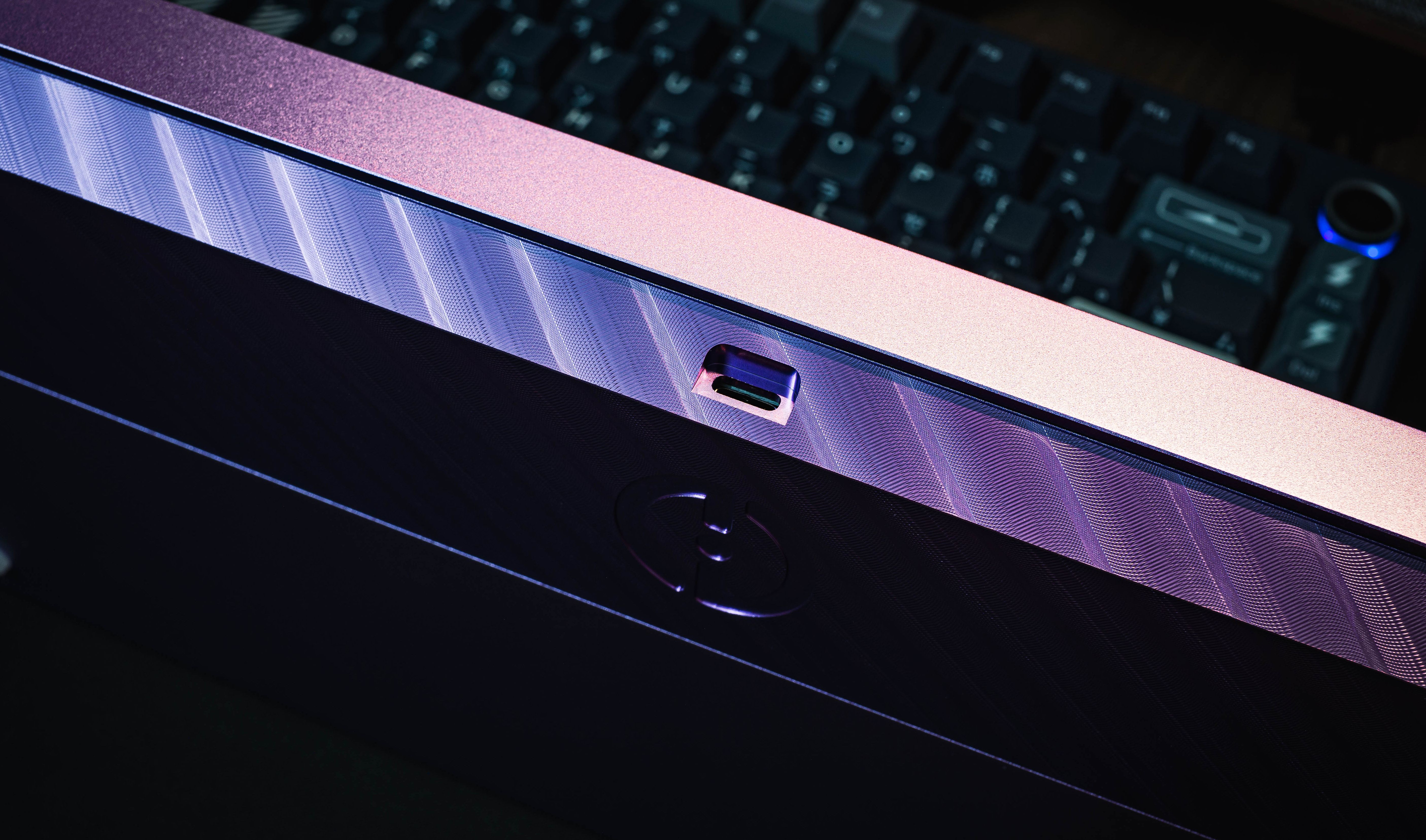
The appeal is simple. Instead of plugging your laptop into a charger and then running another cable to the monitor, a monitor with enough USB-C PD can help create a cleaner one-cable desk setup. You connect one USB-C cable from the laptop to the monitor, and the monitor can display the image while also helping charge the laptop.
What Power Delivery actually does
USB Power Delivery is a standard that lets compatible USB-C devices negotiate how much power should be sent over a cable. That negotiation matters because a phone, tablet, laptop, and monitor do not all need the same amount of power. PD helps the connected devices agree on a safe power level instead of treating every USB-C connection the same way.
In a monitor, PD usually means the monitor can act like a charger for your laptop. The monitor itself still plugs into the wall, but the laptop may not need its own separate power adapter while connected. That is why PD is popular for desk setups built around MacBooks, Windows laptops, and USB-C workstations.
USB-C does not always mean PD
This is the part that causes confusion. A monitor can have USB-C without offering laptop charging. USB-C is the connector shape. It can be used for video, data, charging, or a mix of those functions, but the port has to support each feature specifically.
For example, a USB-C monitor might support video input only. Another monitor might support video and data. A third monitor might support video, data, and 65W or 95W of Power Delivery. The spec sheet should tell you which one you are getting. If it only says USB-C or Type-C, do not assume it will charge your laptop.
Why wattage matters
PD is usually listed in watts. Common monitor charging levels include 45W, 60W, 65W, 90W, 95W, and 100W. The higher the wattage, the more suitable it is for larger or more power-hungry laptops. A small ultraportable laptop may be fine with 45W or 60W, while a larger performance laptop may need more power to charge properly while in use.
If the monitor provides less power than your laptop wants, the laptop may charge slowly, hold its battery level, or continue draining during heavy work. That does not always mean something is broken. It often means the monitor's PD wattage is lower than the laptop's power demand.
When PD is most useful
Power Delivery is most useful when your monitor is the centre of your desk. If your keyboard, mouse, webcam, storage, or other accessories connect through the monitor, USB-C PD can make the monitor feel almost like a docking station. You sit down, plug in one cable, and your laptop gains an external display, charging, and sometimes access to connected accessories.
This is especially helpful for people who carry their laptop between home and work. A clean one-cable setup makes it faster to dock and undock without crawling behind the desk for separate power and video cables.
A real example
The The Mobile Base 32-inch 6K Monitor is a good example of why PD can matter. It lists USB-C support for video, data, and laptop charging, with 95W power delivery. That makes it a stronger fit for laptop-focused desk setups than a monitor that only uses USB-C for video input.
Other monitors can still be excellent choices even if they do not advertise PD. The 27-inch 5K monitor includes USB-C connectivity, while the 40-inch 5K2K curved monitor includes Type-C video input. Those features are useful, but shoppers should still check whether laptop charging is specifically listed if PD is important to the setup.
What to check before buying
First, check your laptop's charging requirement. If your laptop came with a 65W charger, a monitor with 65W or more may be a good match. If your laptop came with a 96W, 100W, or higher charger, look more carefully at the monitor's PD rating.
Second, use the right cable. Not every USB-C cable supports the same power level, video signal, or data speed. A cable that charges a phone may not be the right cable for a high-resolution monitor and laptop charging setup. When possible, use the cable recommended by the monitor or a cable clearly rated for the wattage and display features you need.
Third, remember that PD is not the same as display quality. Resolution, refresh rate, panel type, colour performance, brightness, and ergonomics still matter. PD is a convenience feature, but it should support the way you work rather than replace the usual monitor buying criteria.
Final thoughts
PD in a monitor means Power Delivery. It is the feature that can let a USB-C monitor charge your laptop while also acting as your display. For laptop users, it can make a desk cleaner, faster, and easier to use every day.
The main thing to remember is that USB-C and PD are not automatically the same thing. If you want one-cable laptop charging, look for a monitor that clearly lists USB-C Power Delivery and check the wattage before you buy.
Sources
General USB Power Delivery details referenced from the USB-IF USB Power Delivery documentation and LG's monitor support guide on USB PD charging on monitors.